Firmware Upgrade
Install a SeedHammer II firmware release from a computer or an Android phone, with or without the firmware button.
Install firmware v1.4.3 on a SeedHammer II from a Windows or Linux computer or an Android phone by copying one file. No flashing tool is needed.
Note: An upgrade never asks for seed words, and the machine stores nothing an upgrade could lose (What the machine keeps). Seed words are typed on the machine only and never pass through a phone, a computer or a chat assistant.
What you need
- A Windows or Linux computer, or an Android phone. A Mac connected directly shows no USB drive (workaround).
- A USB cable to the machine's USB-C port. The computer or phone powers the machine during the upgrade.
- The machine's USB-C PD supply, to read the version only (Choose the power supply).
- The file
seedhammerii-v1.4.3.uf2(Download the firmware).
Check the installed version
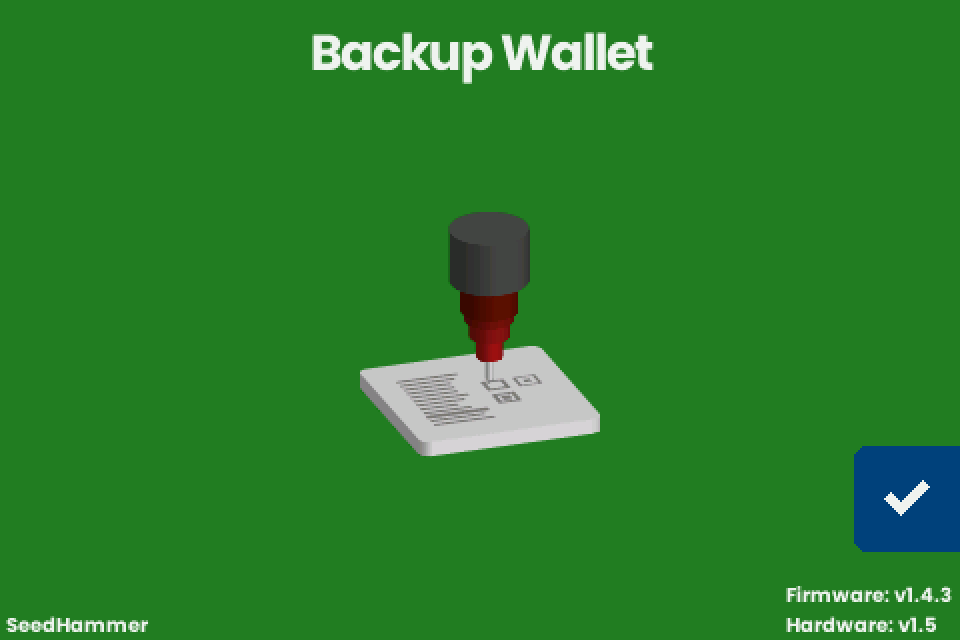
- Connect the PD supply and wait for the start screen "Backup Wallet".
- Read the two lines at the bottom right, for example "Firmware: v1.4.3" and "Hardware: v1.5".
| On screen | Meaning |
|---|---|
| v2.x, for example "v2.0.4-beta" | An older beta. Releases restarted at v1. |
| v1.4.1 (April 2026) or v1.4.2 (June 2026) | A descriptor's QR code leaves out the master fingerprints and the origin paths before each key. |
| v1.4.3 (July 2026) | Latest release; the QR code keeps them. Update a new machine before its first plate. |
| " (UNLOCKED)" after the hardware version | Secure boot is off, or the SeedHammer key is not the only valid boot key (Read the lock mark). |
Download the firmware
- Open the firmware releases. v1.4.1, v1.4.2 and v1.4.3 are the signed, open-source SeedHammer II releases. Older
.imgreleases are for the original SeedHammer. - Under v1.4.3, open Assets and download
seedhammerii-v1.4.3.uf2. - Optional: compare the file's SHA-256 with
07bdb759041a08307cf151f94fb77d2c21444418ccc0bf04b432015cbbcb3794. Windows:certutil -hashfile seedhammerii-v1.4.3.uf2 SHA256. Linux:sha256sum seedhammerii-v1.4.3.uf2. Mac:shasum -a 256 seedhammerii-v1.4.3.uf2.
Note: From here on the computer or phone can stay offline. To rebuild a release or sign your own builds, see Rebuild a release and Use your own signing key.
Put the machine into upgrade mode
In upgrade mode the screen shows no picture (dark, or backlight only) and the machine appears as a USB drive named SHII or the chip's default name (unverified). Start with the PD supply unplugged and the screen dark.
Without the button (v1.4.2 and v1.4.3)
From v1.4.2 on, the firmware restarts into upgrade mode by itself on a port that cannot offer 20 V to 28 V at 3 A or more (unverified). Most computer and phone ports cannot.
- Connect the machine's USB-C port to the computer or phone. The USB drive appears.
With the firmware button
Use the button on firmware older than v1.4.2, when the start screen appears instead of a drive, or when the machine does not start. The chip's boot ROM reads it, so it works whatever firmware is installed. The firmware button (RP2350 BOOTSEL) sits on the underside near the hammerhead and carries the label "Hold button while connecting the USB cable to update firmware"; the other button, "RESET", only restarts the board (labels and position unverified). Find it by its label, not by a button number in a photo.
- Connect the cable to the computer or phone, not yet to the machine.
- Press and hold the firmware button.
- While holding it, connect the cable to the machine.
- Release the button when the USB drive appears.
Copy the firmware
- Copy
seedhammerii-v1.4.3.uf2onto the USB drive (drag it, or use a file manager on Android). - Wait until the drive disappears. The installation is complete.
- Connect the PD supply in place of the cable.
What the machine shows
- During and after the copy: a dark screen, or backlight only. Normal on USB power.
- On a computer or phone port the drive may appear again, because the new firmware restarts into upgrade mode (unverified). The upgrade has worked.
- On the PD supply: "Backup Wallet" with "Firmware: v1.4.3" at the bottom right. A dark screen here: Power faults.
If it does not work
| Symptom | Cause | Fix |
|---|---|---|
| No USB drive on a Mac | Apple USB controllers do not work with the RP2350 boot mode. This cannot be fixed on SH II boards. | A USB-C to USB-A adapter on the Mac, then a USB-A to USB-C cable. Or use Windows, Linux or Android. |
| No USB drive on Windows, Linux or Android | Without the button, only v1.4.2 or later enters upgrade mode. | Use the firmware button. A computer works more reliably than a phone. |
| The start screen appears instead of a drive | The port offered enough power, so the firmware started normally. | Use the firmware button. |
| The USB drive appears on the PD supply | The supply does not offer 20 V to 28 V at 3 A or more. | Use one that offers 20 V or 28 V at 5 A (Choose the power supply). |
| No start after an upgrade, even on a suitable PD supply | Enter upgrade mode with the firmware button and copy the release file again. | |
| Garbled display after an upgrade | The screen's flat cable is loose. | Screen and touch. |
| A descriptor that fitted on v1.4.2 shows "Too Large" on v1.4.3 | v1.4.3 keeps the master fingerprints and origin paths, so the QR code is larger. | Option: engrave it on v1.4.2. Secure boot may refuse the downgrade (unverified). That QR code restores with extra steps: Plates from older firmware. |